Service web for web masters: Adding documents and photos
How do I check the size of photos and files?
It is important to know how large the file you are going to publish is, both because of the appropriate quality for photos and to avoid uploading too large files into the web management system.
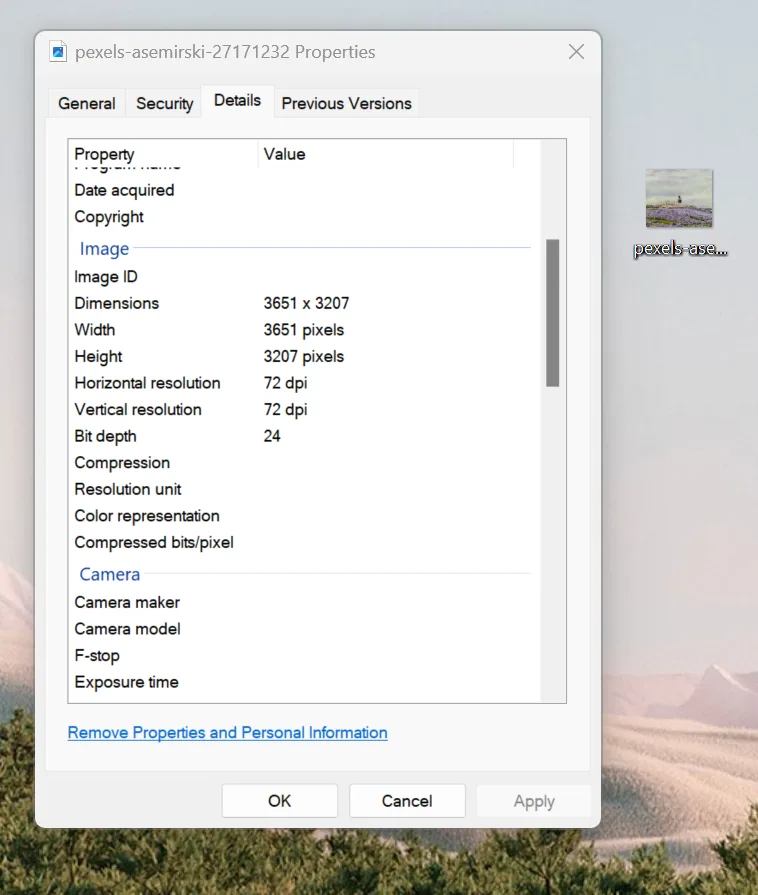
The easiest way to see the size of files is to right click on it and select "properties", then a window will appear where you can see how "heavy" the picture is under Size. If you click on Details you can see how big it is in pixels and in what resolution. For example here where the picture is in 72-point resolution but the size is 3651x3207 pixels.
Vein resolution (screen resolution / digital)
Is usually between 72 and 144 dpi
Suitable for: websites, computer screens, social media, electronic documents (PDF, PowerPoint)
Aim: Have a minimum file size of good quality – to upload quickly and look good on screens
<unk> Example: An image of 800 x 600 px and 72 ppi looks good on a screen, but becomes blurred in print. <unk> <unk> Print resolution
Is usually 300 dpi (dots per inch) or more.
Suitable for: brochures, posters, magazines - but not for web publication.
Objective: Clear and detailed picture without visible points when printed
Units of measurement: Often used cm or inches with dpi (e.g. 10 x 15 cm @ 300 dpi)
Service web for web masters
Ertu með ábendingu eða spurningu?